5 Types of Dynamics 365 Portals

Portals have become an indispensable part of the business. They allow employees, members, and customers to achieve their tasks and interact with the business. They also help everyone to be self-sufficient and stay up-to-date with the latest news and updates. And that, too, without external support.

But do you know there are different companies and types of portals to choose from? For instance, you can select a Dynamics 365 Portal or a Salesforce Customer Portal. 

Next, depending on the audience, you can choose a particular type. For example, you can select a Dynamics 365 customer portal for customers. You can then decide the services you want to provide. Some of those include support for issues, search knowledgeable databases, collaborate with teams and communities, or learn more about products and services. 

If we talk about Dynamics 365, it has five main types of portals. You can choose one based on your use case. 

Here’s a breakdown of the different types of the Dynamics 365 portal.  

  • Customer Self-Service Portal

It’s also known as a Dynamics CRM Customer Portal. It enables your customers to manage information independently. They can generate tickets and get answers to their queries without reaching you. If they need help, they can chat with the support staff directly from the portal. They can access the knowledge base to learn about the product or other information.

Along with this, the portal provides customers with 24-7 self-support. It includes forums where customers can discuss and solve one another queries. Customers can also build a strong community in problem-solving.

The other features of the Dynamics 365 Customer Portal include polls, ratings, and comments. Businesses can use it to get feedback. With it, they can help customers with reliable solutions.

  • Employee Self-Service Portal

This portal acts as an internal space for employees to manage their tasks, share knowledge, or interact with CRM. They can use it to give feedback, access answers to FAQs, or develop a community of their own. 

If you want to equip your employees with a portal, you can go for HR for Dynamics. It is a self-service portal that simplifies employees’ tasks, HRs and managers especially. 

Employees can use it to manage their activities with the HR department. For example, leave applications, activities, travel expenses, etc. Apart from this, they can update their personal information, including contact and account details. 

Managers can get their team’s details right on the screen. They can know about their leaves, salary, deadlines, tasks, attendance, and everything else. 

  • Community Portal

These kinds of portals are like a virtual community. Everyone can gather, discuss, and share their opinions here. The highlights of this portal are blogs and articles, discussion invites, polls, ratings, and a space for comments.  

This type of portal is best for brand building. It encourages users to promote organizations by being unofficial ambassadors and marketers. 

  • Partner Portal

A partner portal helps you provide your partners a space to access various business components. These components can be invoices, orders, payment history, or something else. They can get insights into lead generation, deals tracking and can use it to provide proper feedback. They can also update the details and access their contract details.  

Partners can use a multi-partner collaboration feature to work with a number of partners. They can get all the sales information at one time. 

You can also use partner lifecycle management for recruitment. 

Overall, it would maximize deal protection and give vendors visibility in the customer pipeline. 

  • Field Service and Project Service Automation Portal

A field service portal gives detailed information about the assets, invoices, work orders, and agreements. It is available with Field Service, Project Service Automation, or an Enterprise plan. 

Project Service Automation Portal provides partner project information such as bookable resources, quotes, and invoices.

Summing Up

These are the important types of Dynamics 365 portals. No matter what your industry is, you can always benefit from a portal. But the glitch is that you first need to identify your business requirements. You need to decide whether you want a Dynamics CRM customer portal or a Partner Portal. Then the issues you want it to tackle. Like, if you want to build a brand, a community portal would be best, and so on. 

If you’re still unsure, talk to an experienced portal development company. They can help you solve that dilemma.

Types of Dynamics 365 Portals and Their Uses

Dynamics 365 has multiple types of portals. Each portal serves its own unique purpose. The one that you need will depend on the use case you have. You can choose the portal that addresses your exact pain points.  Here’s a breakdown of the different Dynamics 365 portal examples to help you make the right decision: 

  • Customer Self-Service Portal
  • Employee Self-Service Portal
  • Community Portal
  • Partner Portal
  • Field Service and Project Service Automation Portal

Major Types of Dynamics 365 Portals

Customer Self-Service Portal

Customer Self-Service Portal helps you guide your customers even when you are not sitting at your desk. A streamlined knowledge base helps them get answers to their queries when they cannot reach the support staff. The basic availability of a webstore being 24/7, support or assistance should also be available 24/7. 

Such a self service portal encourages problem solving by providing relevant solutions without the intervention of your staff. This portal includes forums wherein customers can have discussions and there is community building through problem solving. Other interactions like polls, ratings and comments also help the company or organization get essential feedback. 

Employee Self-Service Portal

Employee self-service portal can be used as an internal space for employees to share knowledge, manage their tasks, and have certain interactions with the CRM. They can use it to access answers to FAQs, give feedback, and develop a community of their own. 

HR for Dynamics which is a self service portal for employees is an efficient platform that simplifies tasks for everyone, especially HR and managers. Employees have the freedom to manage their exchange with the HR department regarding leave applications, activities, travel expenses or other expenses etc, right from within the portal. Apart from that, they can easily change personal information in case of any changes in their contact details or bank details.

For the managers, this gives them the freedom to perform their managerial tasks. They can get their team’s summary front and center, including each members’ leave details, salary, deadlines, certification details etc. This helps them make a more accurate analysis of the team’s performance. 

Community Portal

Community portals are primarily like a virtual community, wherein they function like one. A community portal of an organization invites discussions, blogs and articles, and enables polls, ratings and provides a space for comments for feedback. 

Such a portal can encourage users to promote the organization as they become unofficial ambassadors and influencers. 

Partner Portal

Partner portal extends a hand to your partners to bring them on to your organization in a more meaningful way. They can access various components with this like orders, invoices, payment history, etc., all the things that are relevant to their functions in the organization. 

This helps partners get an insight into lead distribution, deal and opportunity tracking, so they use that feedback to improve their operations whenever possible. With account management capability, partners can update any relevant details, have access to their contract details etc.

Multi-partner collaboration facilitates a number of partners to work together on a single opportunity. This way, all of them can get the sales and experience.

The platform of partner lifecycle management can be used for recruitment and streamlines your operations of the partner channel.

The partner portal also maximizes on deal protection and authorization for discounts, and benefits and gives vendors visibility in the customer pipeline. This happens via deal registration.

Field Service and Project Service Automation Portal

Field service portal gives an all-around view of assets, invoices, work orders and agreements. It is available when customers purchase the Field Service, Project Service Automation or an Enterprise plan. 

The Project Service Automation portal, on the other hand, gives partners project information like bookable resources, quotes and invoices.

How CRMJetty Can Help?

So, you can see that there are different Dynamics 365 portal examples available to pick from, based on use cases. Picking a portal from the available types of Dynamics 365 portals requires you to analyze your business requirements. And CRMJetty can help you with that. 

We provide different types of feature-rich Dynamics 365 portals for different industries like nonprofit, education, insurance, real-estate, finance, etc. In addition to that, we also provide portal development services for different use cases and users like vendors, affiliates, partners, customers, etc.

The process we follow to develop is simple and transparent throughout. First, our developer team gathers all your feature requirements. Next, we check and find out if our base product can cater to your portal requirements with customizations. If not, we develop a complete roadmap for a custom solution for you and keep you posted about the developments. Before final delivery, we test it for limitations and confirm that the portal is exactly like what you wanted. 

In the end, we deliver the final custom portal to the customer and provide maintenance and support services as well. 

We can help you figure out the portal that meets your requirements and then customize one to match your exact needs. CTA – Get in Touch

Dynamics Customer Portal: Basics, Benefits and Your Business

Websites are the face of your business but maintaining that face requires a customer portal. Simply having customers be interested in your business is not enough. You have to have a way to be able to solve their issues, assist them and retain them in, long term. 

Dynamics 365 customer portal can do that when you a 1000 customers and when you have 100000 customers. For you to run your business, you need tools that can bring you this much versatility and scale.  

A great website, portal, or business needs much more than just good design. It needs a design that is equally functional. Dynamics 365 customer portal can give you that functionality with features like secure sign-in; roles-based access, drag and drop page builder, entity management, ready to use widgets and more.

What is a Dynamics 365 portal?

Dynamics 365 portal that is built on Dynamics CRM has an advanced content management framework. This framework allows you to surface expose and capture customer data. This tightly integrates with your customer data in Dynamics CRM, a robust, scalable, configurable platform that allows you to automate business processes and manage the entire customer life cycle.

It provides functionalities like customer self-service, community forums, partner engagement, employee self-service, etc. A Dynamics 365 portal can make your support tasks much easier. An often-misunderstood concept of a portal is that it is useful mainly at the end customers’ end, but it is equally useful for the business that uses it. Support employees get their work in order and can become extremely efficient in handling customer issues. 

Dynamics 365 portal can be configured with powerful features that especially work for your business requirements. Let’s look at a few benefits: 

Benefits

  • Improves communication between customers, partners, and other relationships.
  • Displays information from different sources in one place.
  • Helps users to access information when they need it in a secure manner.
  • Increases the revenue opportunities.

It helps external customers to view and create data on the company’s environment, regarding their details, etc. The Dynamics 365 customer portal can give a customer access to their entire profile that your company has for them. This means they have access to their contact information, and they can easily update it, as well as access to their purchase history, knowledge base, and more.  

Who can use the customer portal?

  • The company that wants to communicate order processing information like order status or accounts information from their Supply Chain Management system to enterprise customers.

Online stores that want to scale up and bring a more coherent experience to their customers can opt for a portal. The customer portal is the right complement to a website as it helps address things that a website or webstore cannot accommodate.  

The best part about a customer portal is that the Dynamics CRM customer portal can synchronize right with the CRM, making your management tasks a breeze! 

Role-based access makes the portal simple to use, no matter who is using it. Customers can get their individual profiles; employees can get a neat dashboard to keep up with their tasks and customer queries. The portal aims to simplify and streamline the interaction between employees and customers, and it does so by helping you employees put their best foot forward.  

End Words

Dynamics CRM customer portal can help make your management tasks simple, whether it is customer management or backend functions. You can also get easy to configure portal solutions for your partners and suppliers that can help you streamline all your communication and work with them. Portal solutions give a unique platform where all your business needs can come together to function cohesively so you can focus on things beyond management. 

Summary

This article provides details about the dynamics 365 portals. This also gives information about the customer portal on how it works and which organizations can use it.

Get your Business Back with Retail Customer Portal

Covid-19 started and disrupted everything. It changed our normal, outing habits, shopping habits, and more. 2020 is about to end and here we are trying to adapt to the new post covid era.

It has changed the way we shop and the way business runs. This year in March most retail store owners had to close their shops because of the pandemic. And since then many things have changed for you and your customers.

Many people started to opt for online shopping and this made online businesses huge profits whereas retail owners a huge loss. Let’s see some of the major issues retails shop owners face:

Closing all shops:

A major issue the pandemic brought was closing all the retail stores. It took away lots of opportunities for the daily earnings of shopkeepers as well as employees. Many companies were not able to even provide basic support to their employees. The sudden lockdown across the globe helped in decreasing the carbon footprints but also affected the revenue of the retail store.

Lost touch with customers:

Another issue which businesses face is losing touch with customers. Shops are closed and one needs to stay indoors come what may. This made it very difficult for shop owners to come up with business continuity plans, serve their customers, and be in touch with them. Additionally, this also made customers lose trust in businesses and hardly buy anything from in-store shops.

Challenges of taking the business online:

This is one of the biggest issues that many businesses faced. Finding the right technology partner, taking the entire inventory online, building websites/apps, etc. all these things are challenging and takes a lot of time to make your presence online. Many retail owners don’t know how to do it and whom to reach out to.

Bad customer service:

After all the hard work you finally took your business online but still struggled to serve customers. All these struggles result in having bad customer service. And bad customer service results in losing your customers.

Lack of faith of people in purchasing things in a person:

Now customers are less likely to step into stores and make any purchase. And as a business owner, it becomes difficult to get customers in-store and purchase. They are very likely to prefer online solutions for their safety and convenience.

But, the post covid era has helped a lot in understanding new ways to keep the business going. So, now let’s see how you can open the retail stores in this post covid era:

One of the biggest examples is from Apple:

“We’re also taking some additional steps in most places. Face coverings will be required for all of our teams and customers, and we will provide them to customers who don’t bring their own. Temperature checks will be conducted at the door, and posted health questions will screen for those with symptoms — like cough or fever — or who have had recent exposure to someone infected with COVID‑19. Throughout the day, we’re conducting enhanced deep cleanings that place special emphasis on all surfaces, display products, and highly trafficked areas.”

There are some of the basic and first step solutions to restart your business and gain your customers’ trust back:

Curbside pickup:

You can provide your customers with this exclusive feature right inside your retail customer portal. Your customers can select the date, time, and store location. At that specific time, your employees can go to the parking area and provide them with all their products. This requires less contact, saves everyone’s time, and helps your business to work smoothly.

Scheduled delivery:

Let your users select their preferred date and time for the delivery. This again will be a win-win situation for you, the customers, and the delivery person. The delivery person doesn’t need to do anymore back and forth to the customer’s place nor do customers need to wait the whole day to receive their delivery. Hence, it saves time, fuel, and helps you provide over the top customer service.

Provide multiple delivery options:

Provide your customers with multiple delivery options like curbside, in-store pickup, or home delivery. Customers can select which delivery option is comfortable for them. You can provide them this feature either on every product page or during checkout. Provide more ease while shopping without thinking much about delivery options. This will help you to retain customers and also attract new ones.

Online payments:

In the post covid era, it is better and also recommended to avoid cash on delivery to avoid transmitting the virus. Keeping the safety of your delivery person, customers, and provide your customers with online payment. Now, using the Dynamics CRM customer portal for retail you can integrate an online payment gateway for your customers. Let them link it with their bank accounts and allow them to make an online payment.

Maintain customer directory:

Maintain a directory of your regular customers so you can send them exclusive offers and promotions. You can send them special offers and promotional offers directly from the Dynamics CRM customer portal for your retail business.

Cater to them, make them feel special with your services, and keep them coming back to your store.

Manage invoices:

Your Dynamics 365 customer portal can handle invoice generation. Rather than printing bills and sending them to each customer, you can show them invoices of their purchased products directly in the portal or send them via email. This helps you to provide all the detailed information to your customers and also do your bit for the environment.

Limit people in store:

Limit the number of people allowed in the store. This will help you to maintain social distance and gain customer’s trust. Many retail companies have started doing this and it has helped them to get their customers back in the shop.

Conclusion:

This year has been tough on all of us in some way or another. But, how to find a way from it, move ahead, and grow your business is the key to success. Implement these steps and use the Dynamics CRM customer portal to its full potential to move ahead in your business, gain your customer’s trust, and try to adapt to the new normal.

Pave the Way for Salesforce Dynamic Forms

What is the world’s leading CRM?

The answer we get is Salesforce

And when they get something huge for their customers, it gets even better!

Salesforce is expected to launch its long term pilot feature named “Dynamics Form” first demonstrated in Dreamforce 2018. Let’s see what is Dynamics Form and ways it can help our users.

Winter 2020 is here and last year Salesforce announced five anticipated releases which they rolled out this year.

  • Recycle bin is coming in Lightning App Builder
  • The all new Lightning mobile app
  • Now you can print the lists from the Lightning app. Additionally, the printable view gives you the only parts of the screen you need
  • Give away the plethora of counting unique opportunities now with Power of One filter
  • Easily run schedule flows

 But, Dynamic Forms is the major release in the market. Let’s see it in brief:

What are Salesforce Dynamic Forms?

Dynamic forms are to create user centric, intuitive page layouts which will display proper information at the right time. With it, developers can put each field wherever they want on the Lightning page. No more classic page layouts, and combine layouts such that you can display the needed section on the screen.

Benefits of Dynamics Forms: 

  • Upgrade to your page layout immediately so you can have a field and section wherever you want.
  • Better page performance. You can put page and section headings in a way that it requires less page load time.
  • It provides dynamic layouts to show or hide fields in section
  • Reduce the number of page layout

A quick glimpse into how Salesforce Dynamics Form works:

Currently it is working only on custom objects and support for standard objects will be available later.

Salesforce Dynamic form brings out several new features:

  • Fields Tab:

It is a left hand component pane and it contains fields associated with your custom object and field section component.

  • Record Detail Component:

After you create the record page, you can simply drag and drop field section components and fields on the page. As dynamic forums are flexible you can easily organize, rearrange and even place sections in the tab.

If there are any existing record pages then too you can easily drag and drop the sections in an easier way. Just click on the Record Detail component and you can see on the top of Record Details properties pane.

Once you click on Upgrade Now the Salesforce Dynamic Form migration wizard starts. Go through the wizard and select the page layout which has fields that you want to migrate.

  • Separate Marketing and System Tabs:

Marketing campaigns will show you the lead source and primary campaign source field whereas; system information will be available under system tab.

  • Component Visibility:

Once you add the component to the page you can see component visibility on the side panel. It will provide you with multiple filter options.

Wrapping it up:

Salesforce Dynamic Forms is making it easier for developers to create Lightning page objects. This will lessen the workload of developers and instead helps to focus on more critical parts. If you have tried then do let us know your inputs for Salesforce Dynamic Forms.

About Us:

CRMJetty is a hub of innovative customer relationship solutions. Our tools ensure that you can render enhanced interactions at each stage of your customer lifecycle. So, if you are searching for the right customer portal solution for your company, then we can help you. We have served in this industry for over a decade and have built many portals that have helped our customers. So, get in touch with us and we will help you develop custom web portal solutions.

Step by Step Guide to Enable Multi Language Support in Dynamics Portal

Microsoft Dynamics 365 is widely used because of its robust and effective features. Apart from almost ruling the CRM industry in the enterprise section, they are also ruling the portal industry and with every new release, they raise the standard of their product a little higher. Since every business now has a customer all over the world, it is important to make all communication channels, products, etc. support multiple languages. So, in this article, we are going to show you the steps to enable multi-language support in the default Dynamics portal.

Step by Step Guide to Enable Multi Language Support in Dynamics Portal

How to enable multi-language support in Dynamics 365 Portal

Let’s start with enabling the support first in a CRM application.

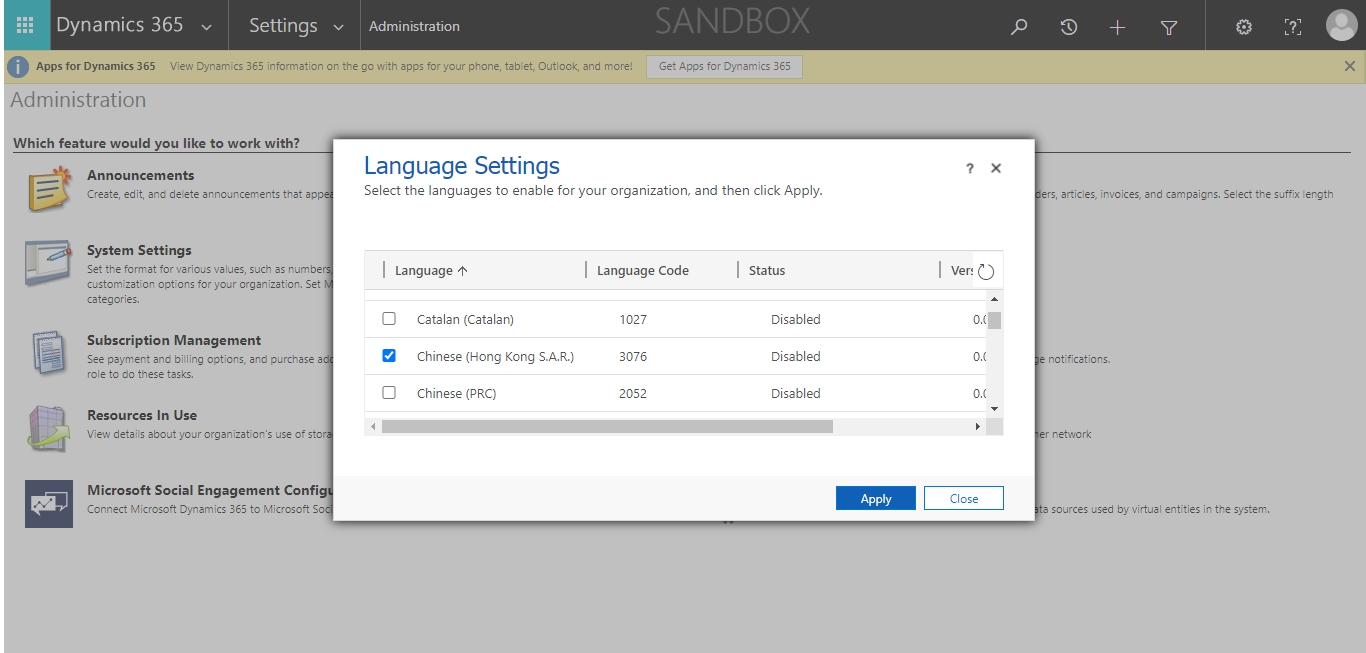
Step 1: Go to Settings → Administration → Languages. Select the language you want to enable and click on “Apply”.

Language Settings

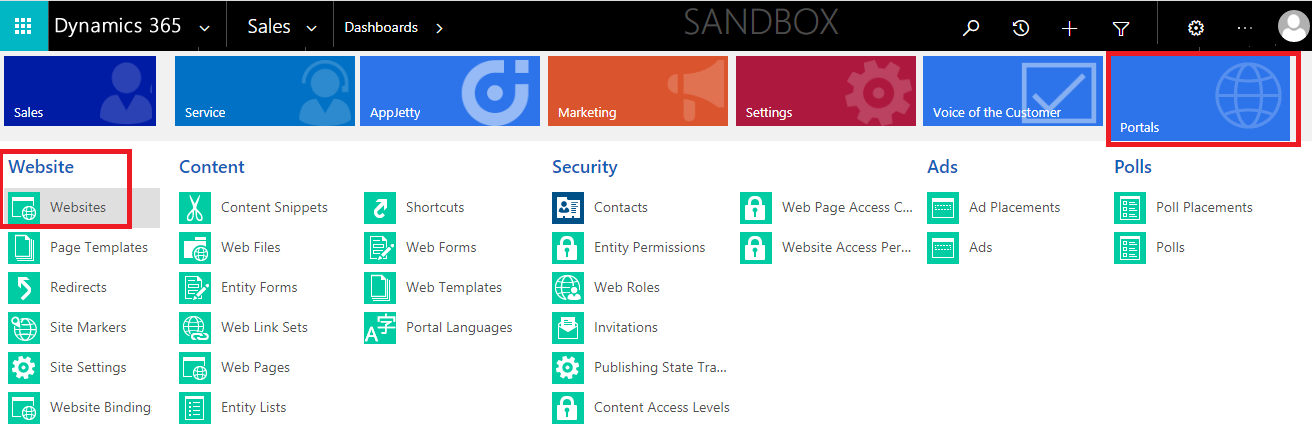
Step 2: Now, enable the language of the portal. Navigate to Portals → Website → Websites.

Portals → Website → Websites

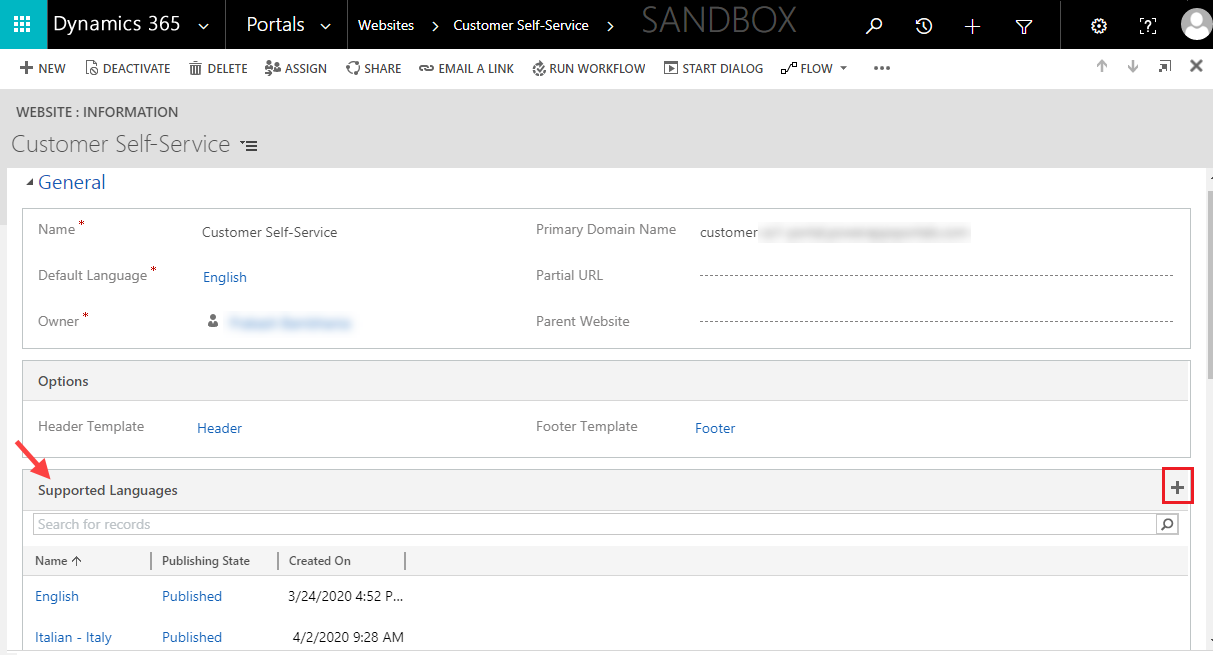
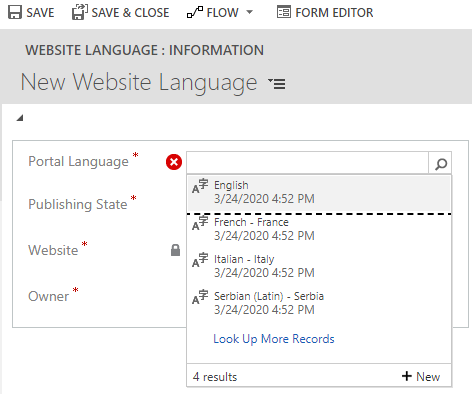
Step 3: Go to General tab → Supported Languages → click on “+.” Now select the language you want and save the changes.

Supported Languages

Note: There are 43 languages supported by the Dynamics 365 portal. To see the list, go to Portals → Content → Portal Languages. Choose the language of your choice and make sure that its publishing status is “Published”.

Supported Languages

Once you add the language(s), the website will be replicated in those languages.

Now let’s update the content of the pages. Remember, each web page has a parent page.

Step 1: Go to Portals → Web Pages.

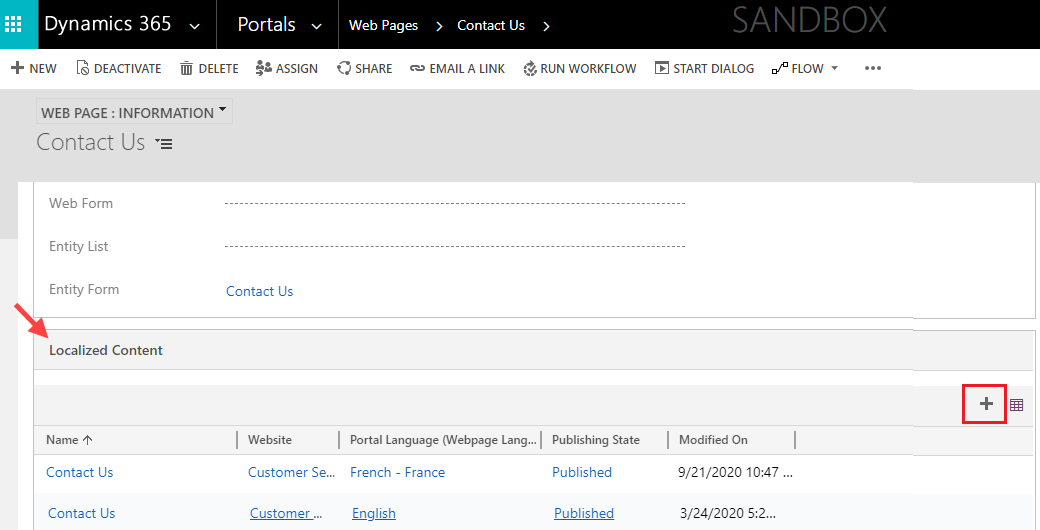
Step 2: Now create a localized webpage for each language you have activated. To do that, go to the localized content section → click on the ‘+’ button on the right side. You might need to modify some content manually.

Localized Content

Congratulations! Your website now supports multiple languages. Your customers will be able to see the drop-down option on the website from where they can change the language.

Now, the default Dynamics portal comes with a lot of limitations or can be expensive for some organizations as well. Hence, we are also going to demonstrate how to manage multiple languages in a third-party portal as well.
One such is CRMJetty’s Dynamics 365 WordPress portal. It has similar functionalities and more.

To set up multi-language support in our WordPress portal, follow these steps.

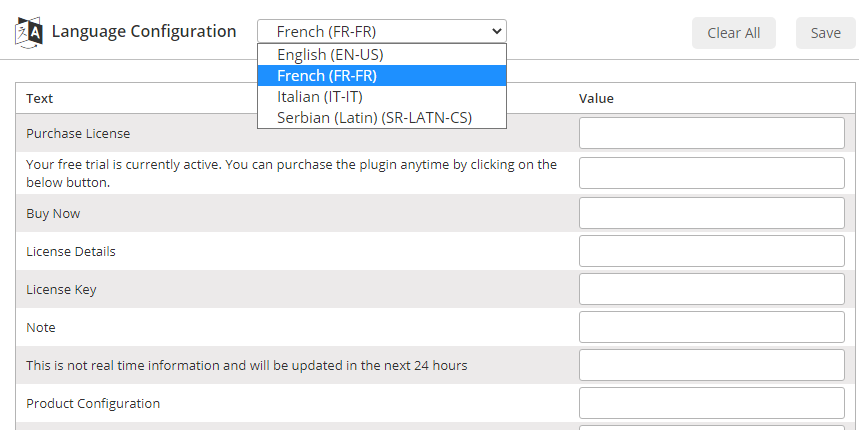
Step 1: Go to the CRMJetty → Configure Language page and click on the configure language option.

Conf.Laguage

Step 2: Choose the language and then add the messages against the specified content. It will reflect on the website when your customers change the language.

Note: You can also set default language from the CRM view by navigating to CRMJetty → General Settings.

You can also set GDPR consent text in the respective languages which will be reflected on the website as well.

About Us

CRMJetty is a hub of innovative customer relationship solutions. Our tools ensure that you can render enhanced interactions at each stage of your customer lifecycle. So, if you are searching for the right portal solution for your company, then you can choose from our wide range of solutions for Salesforce, Dynamics, and more. We have served in this industry for over a decade and have built many portals like customer portal, self-service portal, non-profit portal, etc. Get in touch with us and we’ll help you kick start your journey towards communicating better.

How to Use SharePoint Add-on with our Dynamics Customer Portal

With our latest major release of Dynamics WordPress Customer Portal v3.1, we launched SharePoint Integration add-on that would allow our customers to keep all their documents in sync on all the platforms; Dynamics 365, Customer Portal, and SharePoint.

Pain Point: With our Dynamics CRM WordPress Portal, you could not store or manage the documents in an organized manner. You could just attach the documents to your “Notes” for a specific record.

And knowing how document management is one of the most critical works for a business, we developed our add-on to add value to our solution. When it comes to documents, admin and users want to collaborate to manage and store the documents associated with specific records; for example, quotes, proposals, attachments, etc.

With Dynamics 365, Microsoft has provided a variety of sub-products and Apps to facilitate most of the business requirements, SharePoint being one of them. By integrating SharePoint in Dynamics 365, it will allow to CRM users as well as Customer Portal users to manage and store the documents.

Once you install the “SharePoint Integration” plugin in Dynamics CRM, you can configure the accessibility to upload the documents (or any files), allow to create a folder, and delete option for the Portal users.

First, let’s take a look at prerequisites:

– You should log in as an Administrator in Dynamics CRM.

– You must have installed and enabled the CRMJetty WP Portal in Dynamics CRM.

– You must have configured the CRM Portal in your WordPress site.

– You must have integrated the SharePoint add-on in Dynamics CRM.

– You should be logged in to Office365-SharePoint.

– For this to work, you must install the “SharePoint Integration” plugin in your Dynamics CRM and in WordPress Admin as well.

– Follow the below steps to install SharePoint Integration:

Dynamics CRM side:

– On purchasing this add-on, you will get a zip file named ‘Portal SharePoint Integration’.

– Login to your CRM Account and navigate to the Settings →  Solutions menu.

– Click on ‘Import’ to upload and install the Add-on.

– Import the “Portal SharePoint” Zip file and proceed to install SharePoint.

– Once you import the plug-in, it will be displayed in the solutions grid view.

WordPress side:

– To start with the installation, Log-in as Administrator into WordPress. Click on ‘Plugins’ and click on ‘Add New’ to install the package. 

– To upload the plugin, click on the ‘Upload Plugin’ button.

– Now, click on the ‘Browse’ button and Browse the zip file. After uploading the package, click on the ‘Install Now’ button to install the package.

– Once you’ve installed the plugin successfully, activate the plugin.

Once you’ve configured SharePoint Integration in Dynamics CRM as well as WordPress, provide the users role-wise permission. You can also configure languages if you want to display the captions and messages in the local languages of your portal users.

Now, after all the configuration, your customers will get the Documents module in the WP Customer Portal (Frontend).

Your customer can manage the documents based on the permissions you have provided from the CRM backend.

There are many features provided for the customers to better utilize this add-on, like:

– Your customers can sort the list of documents, change the view by selecting Grid view or List view.

– Breadcrumbs navigation is provided information about the subfolder and its path.

Once your customers upload documents from the portal, the documents get synced and will be available in the CRM and in the SharePoint as well.

Because of the real-time two-way data sync functionality, the documents and the data are updated all the time and on all the platforms leaving no room for miscommunication.

Dynamics CRM SharePoint Integration – A Complete Guide

Microsoft has been ruling the tech world for decades and has changed the way we work with computers. Probably, we cannot imagine the technology industry without them. They are also well known for their multiple products and services, operating systems, cloud computing services, CRMs, and many other products.

Two of the well-known products of Microsoft among enterprises are SharePoint and Dynamics 365. These two products not only make carrying out tasks easier for the companies but also helps them streamline their operations. And in this blog, we are going to talk about how to integrate SharePoint with Dynamics CRM and how enterprises can benefit by doing so.

First, let’s understand each of them in brief, and then we’ll discuss the steps for integrating them.

What is SharePoint?

According to Microsoft, “Organizations use SharePoint to create websites. One can organize, share, store, and even access information from any device. You can access SharePoint via various web browsers like Microsoft Edge, etc.”

In other words, SharePoint is a content/document management and collaboration tool developed by Microsoft. It is essentially useful for internal purposes and works as a content management system for organizations.

What is Dynamics 365?

Dynamics 365 is a cloud-based solution that combines customer relationship management (CRM) and enterprise resource planning (ERP) with the power of Artificial Intelligence. With the help of Dynamics 365, you can securely manage your customers’ data.

The biggest advantage of using it is that if as a company you are heavily dependent on Microsoft products like Office 365 then having Dynamics 365 means easy integration with other products.

Now, let’s go step by step on how you can integrate SharePoint with Dynamics 365 and what are the advantages of the same.

Pre-requisites:

Before, starting the integration check the following:

– Purchase the license or install SharePoint

– The user who is setting up the integration must have System Administrator rights for CRM and SharePoint.

– On the basis of your requirements, locate the exact SharePoint site, or create a new SharePoint site collection.

– Add the SharePoint website to the trusted site in Internet Explorer.

Now without any further ado, let’s start with the step by step process of integration:

Step 1: Open Dynamics 365, navigate to Settings → Advanced Settings. You will find this option only if you have System Administrator rights.

Step 2: Choose System and then click on Document Management.

Step 3: Then click on Configure Server-Based SharePoint. Upon clicking this, you will find option Define Deployment where you will get two options:

– Online

– On-premises

For this demonstration, we are going to choose Online. After selecting the option, now click onNext.

Step 4: Now you will come on Prepare Sites. Here, you need to add the URL to your SharePoint website and click Next. Once your website is successfully validated, you will see the next section i.e. Validate Sites. Here, you will see the Validation Succeeded. Now, click Finish.

Step 5: Now, go back to the Document Management Settings. Here, you will need to select the entities for which you want to enable SharePoint folders.

Step 6: Next up, you will see the pop-up screen. Here you need to select the entities which you want to store and click Next. Going further, you can create folders based on entities and also create subfolders for individual Accounts and Contacts. 

Step 7: Once the libraries are set up, click on Finish.

Your integration of SharePoint and Dynamics CRM is set now. In your Dynamics CRM section, you will see the Documents section. Before you start using it, make sure that you have set the permissions properly.

Don’t stop with this integration, you can go one step further by integrating our Dynamics Portal solution with Dynamics CRM and SharePoint to streamline your business operations throughout.

About Us:

CRMJetty is a hub of innovative customer relationship solutions. Our tools ensure that you can render enhanced interactions at each stage of your customer lifecycle. So, if you are searching for a portal development company, we are here to help you in building the right customized portals. Something that your customers will love. We have served in this industry for a decade and have built many Dynamics Portal like customer portal, self-service portal, web development portals, etc. Get in touch with us to create customized portals and we’ll help you kick start your journey towards growing with portals.

How to Manage 360° Ticketing from Portals

As any support staff member knows, customers raise support tickets for various queries. Many times, those queries are repetitive. This is where efficient ticket management comes into the picture. There are a number of ways to handle it. But the easiest way to handle it is to have a smart ticket management feature built into the customer portal.

Let’s explore the feature that is built into PowerApps’ Customer Self-Service portal.

Here’s how to manage 360° ticketing from the PowerApps portal:

Steps:

Step 1: Your portal users can login using their portal user credentials in PowerApps Portal.

Step 2: From the Navigation Menu, they need to navigate to My Support. The Case list view will open from where they can see their cases. 

Users will search for a problem solution before generating any case, if they don’t find one, they will add a new case, edit existing case or remove case.

Step 3: To create a new case, they can click on Open a New Case.

User will also get a solution as a suggestion while typing the case title.

Similarly, if you opt for a third party solution over the default portal, you can get a robust ticketing management solution.

Let’s look at the steps of how to manage the same in the Dynamics 365 WordPress customer portal:

Step 1: Your portal users can login with their portal user credentials in Customer Portal.

Step 2: They need to navigate to the case module where they will be able to see the list of records of that module. They can search a record from the list view, delete it or update it.

They can also filter the existing contacts based on account and contact selection. It will allow them to filter and get details of specific child contacts. These hierarchy settings will be based on the hierarchy that is set by admin on the Dynamics CRM side. So the parent roles will be able to see the cases of their child roles.

Step 3: Your users can add a new record to that module. To add a new record, they need to click on the Add Case button from the list view or from the navigation menu by clicking on the Add button.

– This Customer Portal provides Case Deflection. This feature will help portal users to get probable solutions before generating any case.

– When a portal user faces any queries or issues, they will be able to navigate to Add Case option.

– Once they create a new case from the portal, it will get reflected in Dynamics CRM.

Step 3: By clicking on the View button from the List View, your users can view the details of a case. They can edit that case or add notes for particular cases from the detail view.

The purpose of tickets is to solve certain problems that a user is facing. But it should also be easy to do for the support staff. With features like case deflection, they can handle the issues that are new or unique instead of spending all their time on queries that already have a ready made solution. Whether you go with the default option or a third party portal solution, make sure to get one with a robust ticket management feature.

How to Manage Configuration of Advanced Settings for Customer Portal

Not all third party portal solutions for Dynamics CRM are made the same. At the end of the day, their functionality and ease of use as well as features decide which one to use. CRMJetty’s Dynamics 365 WordPress Customer Portal has some particularly neat features. On top of that, it is simple to configure and use, for both the admin users and the end users. Let’s walk through the steps to configure advanced settings in their customer portal.

– Once the activation is successfully completed, navigate to the CRMJetty tile to access and setup various configuration for portal i.e. General Settings, Email Settings, Portal Layouts, Language Configuration and Roles.

Or

– For unified interface, navigate to Dynamics 365 – Custom and from the bottom menu select CRMJetty.

Upgrade Data:

To manage upgrades, we have upgraded a specific flow wherein if you have any older version of Customer Portal, then the Upgrade Data button will activate.

For upgrading data, navigate to ‘CRMJetty -> General Configuration and click on Upgrade Data button.

– By upgrading data, you can make your portal compatible with the latest version of the portal.

Setting General Accessibility for Portal Users:

– For general settings, navigate to CRMJetty from the menu.

– Mention the URL of your WordPress Account (i.e. Portal URL) which will be sent along with the credentials mail and click on the Save button.

– Use Dropdown Caching to set up values of lookup fields (Related to other modules). Values displayed in lookup fields will remain old until it surpasses the time set here.

– By enabling the Change Role of Hierarchy, you can change the role of hierarchy i.e. if the role of any contact is updated or removed, it will be applied to the whole child hierarchy.

– By enabling the Change Account of Hierarchy, you can change the account of hierarchy i.e. if an account of any contact is updated or removed, it will be applied to the whole child hierarchy. If it is unticked, and the account is updated then it will work as a separate entity from the hierarchy.

Setting Email Template:

– Admin can create any email template like Signup and Forgot Password template from CRM.

– From templates, the user gets the option to create New template and also select template type.

– Select email template type as Contact and create an email template filling the necessary details as per your requirement.

Note: Users can also assign default “Email templates” for various actions performed.

– For assigning the default email template navigate to CRMJetty -> Email Settings.

– Select appropriate email template and Save email settings.

Assign User Role:

– To manage the user roles, navigate to Settings -> Security -> Users.

– Now select the users whose roles are to be managed and click on Manage Roles. This will open up a pop up to select roles.

– To access CRMJetty product entities assign CRMJetty Customer Portal role to selected users.

Note: System Administrator will also be able to access CRMJetty Product Entities.

CRMJetty’s customer portal is thus one of the easiest one to navigate in the market. The portal market is huge, but you have to find one that fits your workflow, your customers and your staff.